
Quick Start
To get the data provided on this platform, please follow the steps below:
Step 1: Register
First of all, you have to apply to use this service.
Select “Manage Account”.
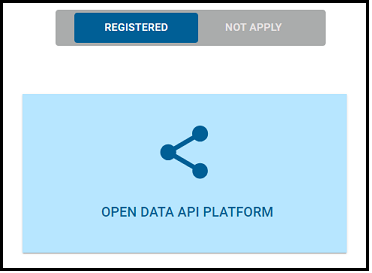
Select “NOT APPLY” to list the items not yet applied for.
Click “OPEN DATA API PLATFORM”, read the agreement, and apply.
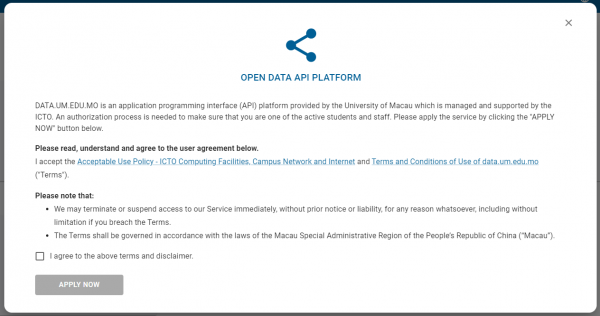
Notes
If “OPEN DATA API PLATFORM” is under the "REGISTERED" page, it means you have registered.
Step 2: Sign in
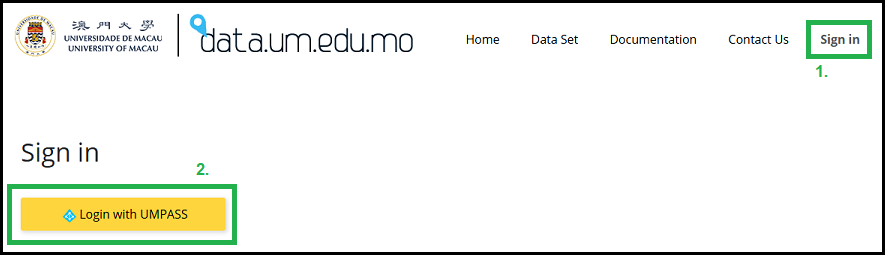
Click "Sign in" in the menu at the top right corner.
Click "Login with UMPASS" button.
In the Microsoft "Sign in" page, input your UserID with the UM domain (e.g., userid@um.edu.mo). Click "Next".
You will be directed to UMPASS Authentication Service page. Your UserID should be filled in automatically. Input the password and click "SIGN IN".
You will be directed to the home page of this platform if you successfully sign in.
Notes
If you are newly registered (as mentioned in Step 1), please wait for up to one hour for it to take effect.
The page content may not be shown completely on some pages without sign in.
Step 3: Get data from a data set
Go to the Data Set page and find your interested data set.
If it's an API, please follow Step 4. If it's available in file format, please follow Step 5.
Step 4: Subscribe a Product for accessing data with API
Go to Products page.
Click "UM Members".
In the section "Your subscriptions", input a "production subscription name".
Click the "Show" link and read the "Terms and Conditions of Use" if you have not read them before. Then, check the box to agree.
Click the "Subscribe" button to subscribe. Then, you will be directed to the Subscriptions page, which shows the details of your subscriptions.
In the Subscriptions page, for a subscription item, click the "Show" link of "Primary key". Please use it as the value of "Authorization" key while calling an API.
To try an API, go to the Data Set page and select an API. Click the "Try it" button on the right-hand side and try it directly.
To use the API, please check the API General Operations.
To know more about the data definition of a data set, please check the Data Dictionary.
Step 5: Get data in file format
Go to the Data Set page.
Click the "Download" button of a data set in "Files" section.
You will be directed to OneDrive storge platform and can download the data you are interested in.
To know more about the data definition of a data set, please check the Data Dictionary.